
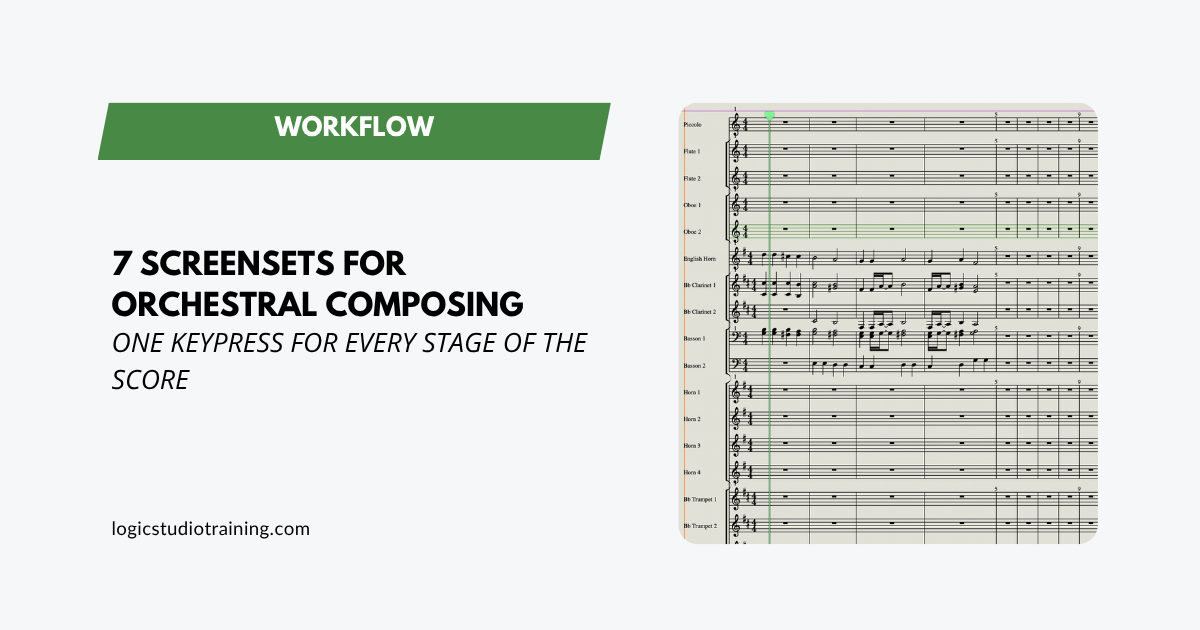
An orchestral project in Logic Pro gets crowded fast.
Dozens of string, brass, woodwind, and percussion tracks compete for the same screen, and every trip into a menu to find the Mixer or the Score Editor pulls you out of the music. Screensets solve that. Each one saves a complete window layout, and you recall it with a single number key, so the view you need for each stage of a piece is always one keypress away.
If screensets are new to you, start with how to use Logic Pro screensets, which covers the basics of creating and recalling them. The seven layouts below build on that foundation, one for each stage of an orchestral piece, numbered in the order you’ll reach them.
How to create a screenset
Press any number key from 1 to 9 to open that screenset slot, then arrange your windows the way you want them. Logic saves the layout automatically the moment you switch to another screenset, so there’s no save command to remember. (The 0 key is assigned to Stop, and for two-digit screensets you hold Control while typing the first digit.)
Screensets also remember window positions and zoom levels. Build each of the seven below in its own slot, and your whole orchestral workflow fits on the top row of your keyboard.
1. Instrument selection and track layout
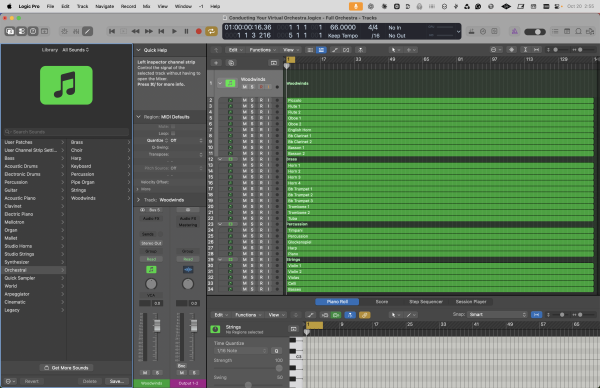
Screenset 1 is where the orchestra takes shape. Press Y to open the Library on the left, and let the Tracks area fill the rest of the window. With the Library open, you can audition patches on the selected track as fast as you can click.
Group each section into its own track stack as you build. Select the section’s tracks, choose Track > Create Track Stack, and pick Summing Stack, which routes the whole section to a single bus. Do this for strings, brass, woodwinds, and percussion, and leave a little room in each stack for the doubles and solo instruments you’ll add later. The extra minute here pays off in screenset 5.
Once your sections are loaded, my guide to orchestration techniques for Logic Pro’s orchestral patches shows how to get a big cinematic sound out of the same instruments.
2. MIDI input and Piano Roll editing
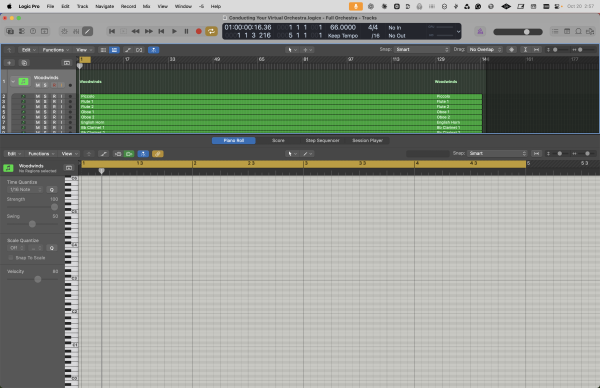
Press P to open the Piano Roll at the bottom of the main window, then drag the divider up until the editor fills about half the screen. Keep the Tracks area visible above it so you can click from violins to cellos without losing your place in the bar.
That half-and-half split gives you room to shape note lengths and velocities across a long legato line. Velocity and note length carry most of the expression in a sampled string part, so expect to spend a lot of your writing time in this screenset.
3. Score Editor for notation
Press N to open the Score Editor below the Tracks area, and give it as much height as your display allows. Select regions on several tracks at once and the Score Editor shows them together as a multi-staff score, which makes doubled notes and awkward voice leading easy to spot.
If you work on two displays, press Command-5 instead. That opens the Score Editor in its own window, which you can park on the second screen while the main window stays on the first. The screenset remembers both window positions, so the whole arrangement comes back every time you press 3.
4. Smart Controls for articulations
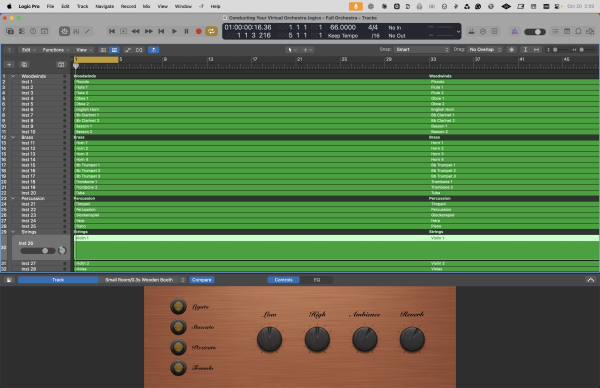
Logic’s orchestral instruments, Studio Strings among them, switch between sustain, staccato, pizzicato, tremolo, and more through articulations. This screenset puts those articulations in front of you while you record.
Press B to open Smart Controls at the bottom of the main window, then click the Keyswitches button in the Smart Controls pane. You’ll see every articulation the instrument offers mapped across a keyboard graphic, along with the octave the keyswitches sit in. Switch articulations there, or play the keyswitches from your MIDI controller while you record.
One detail saves a lot of head-scratching: a new articulation choice applies to the notes you play next and leaves recorded notes as they were. To change notes you’ve already recorded, select them in the Piano Roll (screenset 2) and set the articulation there.
When a passage needs your own combination of playing styles, custom articulation sets in Logic Pro walks through building them.
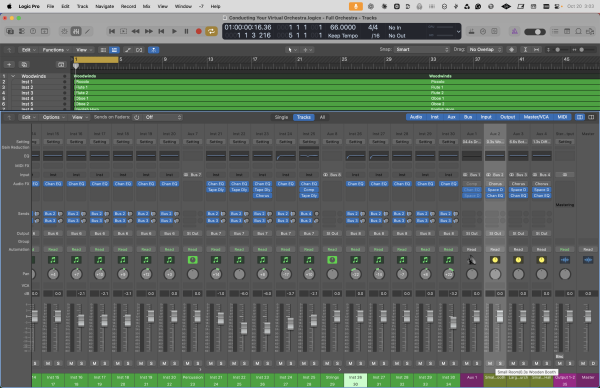
5. Mixing the orchestra
Press Command-2 to open the Mixer in its own window and stretch it across the full screen. Because you built each section as a summing stack in screenset 1, the Mixer shows a channel strip for each section’s bus.
Collapse the stacks and you’re balancing four faders: strings, brass, woodwinds, and percussion. Expand a stack when a single instrument needs attention, then collapse it again. A shared reverb on an aux send puts all four sections in the same room, which is the quickest way to make separate sample libraries sound like one orchestra.
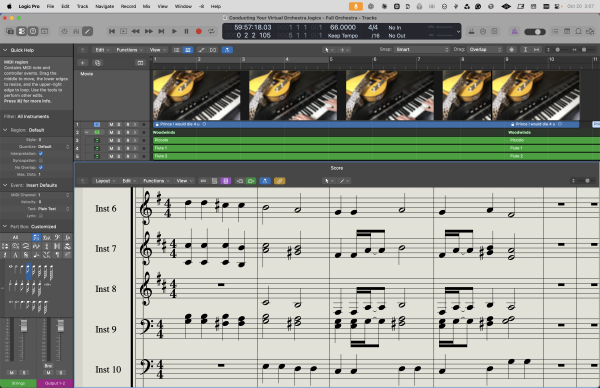
6. Scoring to picture
Choose File > Movie > Open Movie (Option-Command-O) and pick your video file. The movie opens in a floating Movie window. Drag it to the top half of the screen and leave the Tracks area or Score Editor below it. Movie playback follows the playhead, so moving through the timeline moves the picture with it.
Pro tip: turn on Lock Movie Window When Changing Screensets in the project’s Movie settings (File > Project Settings > Movie). With that setting on, the picture stays in place and keeps playing while you flip between your Piano Roll and Mixer screensets. Movie settings appear when Enable Complete Features is turned on in Logic’s Advanced settings.
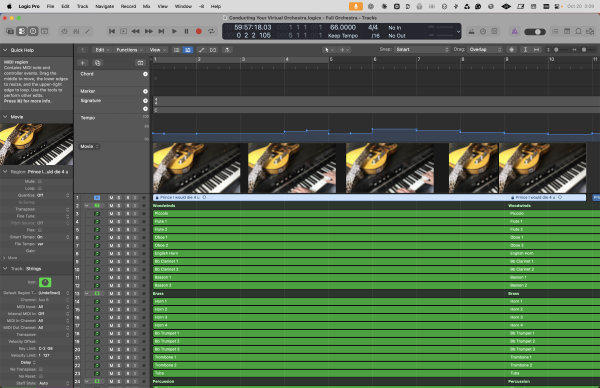
7. Global tracks for tempo, key, and markers
Press G to show the global tracks along the top of the Tracks area. The Tempo, Signature, and Marker tracks live here, along with the Movie track once a film is loaded. Keep the Piano Roll or Score Editor visible below so you can see what a tempo change does to the music.
For film work, drop a marker on every hit point first, then shape the tempo track so your downbeats land on those markers. Tempo changes and hit points stay in one view, which makes it far easier to keep a cue in sync when the edit changes.
Lock your screensets and reuse them
Once a layout feels right, protect it. Open the Screenset menu (the number in Logic’s menu bar) and choose Lock. A locked screenset returns to its saved layout every time you recall it, so a pane you resized by accident snaps back the next time you press that number.
To reuse all seven, save a project that contains them as a template with File > Save as Template. Every new orchestral project then opens with your screensets ready to go.
Screensets are one piece of a faster Logic setup. If you want that speed built into every stage of a project, Logic Pro Professional Workflow is my step-by-step training program for producers who want release-ready tracks.
Build screenset 1 today, and let the other six earn their number keys as your next piece needs them.
Your Logic Pro Coach,
Graham
Free Download
Get the Free Logic Pro Quick Start Guide
The key workflows, settings, and shortcuts to get up and running in Logic Pro fast. Enter your name and email and I'll send it right over.
Your information stays private. No spam, no sharing, ever.