
What if the hardest part of learning Logic Pro is already behind you?
If you've made music in GarageBand, even a little, you already know how Logic Pro lays out a song. Upgrading from GarageBand to Logic Pro is one of the easiest moves in music production, because your projects and keyboard shortcuts come with you and the interface already looks familiar. Everything you already know carries forward, and Logic adds professional power on top of it.
This guide walks you through the whole thing: whether you should upgrade, what stays the same, what's new and worth learning first, and how to move your projects across without losing a thing.
Let's make the switch feel easy, because it is.
You already know more than you think
GarageBand and Logic Pro are siblings. Apple built both, on the same foundation, and over the years they've grown to look and behave more alike than ever. GarageBand started life as the friendly, stripped-down version of Logic, and much of what you've learned in it maps onto the bigger app.
When you first open Logic Pro, the interface looks busier. There are more buttons, more panels, more menus. Underneath that, the core building blocks are the same ones you've been using all along. Tracks still run along a timeline, and software instruments, Apple Loops, and the Library all work the way you remember.
The learning curve people warn you about is real, but it's gentler than it used to be, and it's much gentler for someone coming from GarageBand than for someone starting cold. Think of it as picking up a few new words in a language you already speak.
Should you upgrade? The honest answer
Upgrade when you hit a specific limitation that blocks what you're trying to create.
The most common trigger points are wanting Flex Pitch to tune vocals, needing the full Alchemy synthesizer for sound design, running into GarageBand's track and feature ceilings, or wanting real mixing control that GarageBand's simplified faders can't give you. When you keep wishing for a feature that isn't there, that's your signal.
If GarageBand still does everything you need, there's no rush. It's a capable app, and plenty of artists have released music made in it. When your ambitions outgrow it, Logic Pro is waiting, and the step up is small.
Logic Pro costs $199.99 as a one-time purchase from the Mac App Store. Logic includes every instrument, effect, and sound library, and every future update comes at no extra charge. There are no tiered editions and no locked features. For what you get, it's one of the best values in music software.
What carries over (the familiar stuff)
A surprising amount of GarageBand transfers directly to Logic Pro. These will feel familiar on day one:
- The Library (press Y): same interface, same browsing, many of the same patches and sounds
- Smart Controls (press B): the same simplified knobs for adjusting instrument and effect settings
- Apple Loops: the entire GarageBand loop library is in Logic Pro, plus a much larger collection on top
- Software Instrument and Audio tracks: they work exactly as they do in GarageBand
- Drummer: still here, and Logic expands it with more control and follow modes
- The transport controls: Play, Record, Cycle, Metronome, Tuner, and Count-In are all in familiar positions
Even the keyboard shortcuts carry over. The moves that are muscle memory in GarageBand do the same things in Logic. That familiarity is what makes this upgrade different from switching to Ableton or FL Studio, where you’d start over from scratch with a new interface, new shortcuts, and projects that don’t transfer.
The one concept that makes Logic click: the channel strip
If there’s a single idea that turns Logic Pro from intimidating to approachable, it’s the channel strip.
Think of a channel strip as your GarageBand track header and Smart Controls combined into one vertical strip. Everything for that track lives in one place: volume, pan, mute, solo, a visual EQ, and slots for instrument and effect plugins. Audio tracks add input and monitoring options. Instrument tracks focus on the instrument and its processing.
There’s also a Stereo Out channel strip, and that one is GarageBand’s Master Track by another name. It controls the final output of your project and holds your mastering tools, including Logic’s Mastering Assistant.
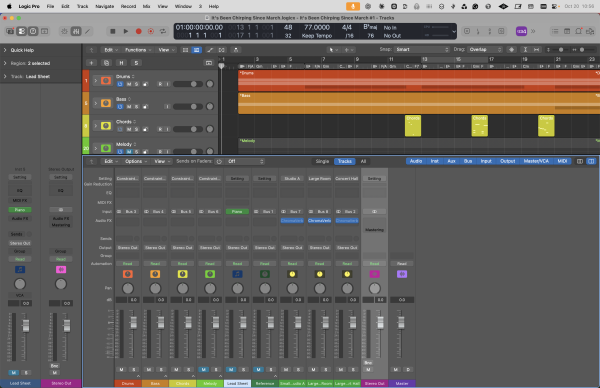
Once channel strips make sense, a lot of Logic stops feeling mysterious. Nearly everything you do to shape a sound happens on a channel strip, and they all follow the same layout. Learn one, and you’ve learned them all.
The Mixer and busses (you already use these)
Logic Pro’s Mixer can look intimidating in a large project, but the ideas behind it are ones you already use in GarageBand without thinking about them.
Press X to open the Mixer. You’ll see every track as a channel strip, side by side, so you can balance your whole song from one window instead of clicking between tracks. Logic also shows a few channels GarageBand hides, like the click track and the output. You can filter those out so the Mixer shows only what you care about.
Busses feel advanced, but you’re already using them. GarageBand’s Master Reverb and Master Echo are global effects shared across all your tracks. That’s a bus. Logic takes that same idea and lets you create as many as you want, route multiple tracks to one reverb or compressor, and adjust how much each track sends. You tweak the effect once rather than copying it onto every track. It’s the same concept you know from GarageBand, with room to grow.
How to move your GarageBand projects across
Your GarageBand projects open directly in Logic Pro, with nothing lost.
Here’s the process:
- Update both GarageBand and Logic Pro to their latest versions.
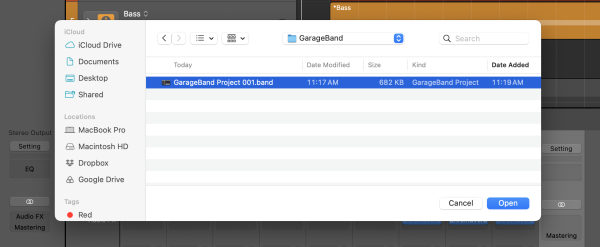
- In Logic Pro, choose File > Open (or press Command-O).
- Navigate to your GarageBand project. By default, GarageBand saves to
~/Music/GarageBand. - Select the project and click Open.
- In the Save dialog, choose a location for the new Logic Pro project and click Save.
Logic recognizes the project and translates it. It creates the right number and type of tracks to mirror your GarageBand session, keeps the tempo, sets the key to match, and imports your mixing data and effects along with their settings. Software instrument parts play through their Logic counterparts. Your GarageBand patches translate one-to-one, with the bonus that you can now open up the individual plugins inside each one.
One thing to know: this is a one-way trip. Logic Pro projects don’t open back in GarageBand. If you ever need to, you can share a special GarageBand-compatible version of a Logic project for GarageBand on iPad or iPhone, but your main Logic project stays in Logic. For an upgrade, that’s what you want, since your past work moves forward with you and keeps growing.
The new tools worth learning first
Logic Pro adds a lot. Trying to learn all of it at once is the fastest way to feel overwhelmed, so start with the handful of tools that deliver the biggest payoff for someone coming from GarageBand.
Flex Pitch. Tune your vocals note by note, right inside Logic, with no extra plugins. GarageBand has nothing like it. This one feature is reason enough for many singers and songwriters to upgrade. For a full walkthrough, see How to Use Flex Pitch in Logic Pro.
The full Alchemy synthesizer. GarageBand includes a simplified Alchemy. Logic gives you the complete engine, with additive, spectral, granular, and wavetable synthesis, the Transform Pad for morphing between sounds, and over 3,000 presets. If you could keep only one synth, this would be it, and it replaces most third-party synth purchases on its own.
Session Players. You already know Drummer. Logic extends that same idea to a Bass Player and a Keyboard Player that follow your song, so you can build a full rhythm section even if you don’t play those instruments. It’s Drummer, grown up.
Chord ID. New in Logic Pro 12, Chord ID analyzes your guitar or piano recording and figures out the chords automatically, then feeds them to your Session Players so the whole arrangement follows along. It’s the fastest way to go from one instrument to a full-sounding track. See How to Use Chord ID in Logic Pro 12 for the details.
Start with these. Add the rest as you need them.
What you can safely ignore (for now)
Logic Pro has hundreds of features, and you can ignore most of them while you settle in.
Pattern tracks and the Step Sequencer are powerful for programmed beats, but they’re not essential on day one. Live Loops opens up a whole non-linear way of working, and it can wait until you’re curious about it. The demo projects that ship with Logic look impressive and can be overwhelming, so treat them as reference material rather than something to learn from right away. The deeper routing and automation will still be there when you’re ready.
You can make a great track without any of it. Professional producers use maybe a fifth of Logic’s features regularly. Focus on what you already know, add the tools above one at a time, and let the rest wait until a project calls for it.
Your first hour in Logic Pro
Here’s a simple way to spend your first hour so Logic feels like home instead of a foreign country.
Open one of your existing GarageBand projects using the steps above, so you’re working with music you already know. Find the five familiar landmarks: the Library (Y), Smart Controls (B), the transport controls up top, the track headers, and the Inspector on the left. Press X to open the Mixer and see your whole project laid out as channel strips. Add a Session Player and let it play along with your track. Then make one small change and bounce it out.
That’s it. You’ve opened a project, met the Mixer, used a feature GarageBand doesn’t have, and exported something. Everything else builds from there.
For the complete beginner-to-finished-track workflow, walk through Logic Pro for Beginners: Your Complete Guide to Logic Pro 12. It picks up right where this guide leaves off.
Frequently asked questions
Is Logic Pro worth it if I only make simple tracks? If GarageBand handles everything you do comfortably, there’s no urgency. The upgrade earns its price once you start wishing for tools GarageBand doesn’t have, like Flex Pitch, the full Alchemy, or real mixing control.
Will my GarageBand projects really open without problems? Yes. Logic opens them directly, keeping tracks, tempo, key, instruments, mixing, and effects intact. There’s no import or conversion step, and no cleanup afterward.
Is the learning curve as steep as people say? It’s gentler than its reputation, especially coming from GarageBand. The interface is familiar, the shortcuts are the same, and you can hide the advanced complexity until you’re ready for it.
Can I go back to GarageBand after upgrading a project? Logic projects don’t open in GarageBand directly. You can share a GarageBand-compatible version for iPad or iPhone if you need to, but your main work stays in Logic.
Do my GarageBand sounds and loops transfer? Yes. Logic includes everything GarageBand has and more. Your patches translate one-to-one, and your Apple Loops are all there, alongside a much larger library.
How much does Logic Pro cost? $199.99 as a one-time purchase from the Mac App Store, with all future updates included at no additional charge.
What’s next
You’ve got the full picture now. The upgrade is smooth, your work comes with you, and the features that made you consider the jump are waiting on the other side.
Once you’ve made the switch, the fastest way to build a real, repeatable workflow is Logic Pro Professional Workflow, the step-by-step training system for home studio producers who want professional-sounding results faster. It takes everything you’re about to learn and turns it into a process you can run on every track.
Music should be fun, not frustrating. You’ve already done the hard part by learning GarageBand. Logic Pro gives you more room to grow. Open a project, make one thing, and keep going.
You’ve got this.
Your Logic Pro Coach,
Graham
Free Download
Get the Free Logic Pro Quick Start Guide
The key workflows, settings, and shortcuts to get up and running in Logic Pro fast. Enter your name and email and I'll send it right over.
Your information stays private. No spam, no sharing, ever.