
Logic Pro stops cooperating, and the session stops with it. You sat down to work, and now you're twenty minutes into settings menus and error messages instead of music.
Most Logic problems trace back to one of three things: a third-party plugin, your audio interface, or a single damaged project. Four checks will tell you which one you're dealing with, and they take about five minutes.
Start Here: The Five-Minute Triage
Work through these in order and test Logic Pro after each one.
1. Restart Logic, then restart your Mac. Obvious, and it still clears a surprising share of problems. Do it first so you don’t spend an hour chasing something a reboot would have fixed.
2. Rule out third-party plugins. Quit Logic. Open it again and hold the Control key before any project loads. In the alert that appears, click Launch Without Audio Units. If Logic opens and behaves, a third-party plugin is your culprit, and you can narrow down which one from there.
This is the check to run first after any Logic or macOS update. Plugin and hardware incompatibility is the most common cause of “it worked yesterday.”
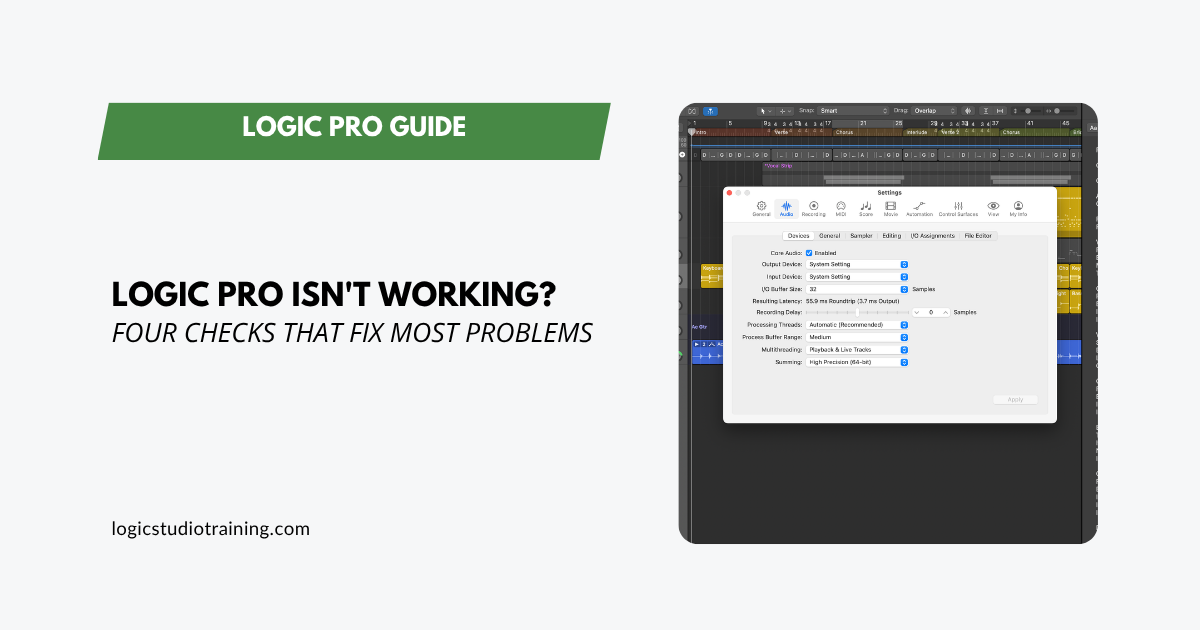
3. Rule out your audio interface. Unplug your external interface. In Logic, go to Logic Pro > Settings > Audio > Devices and set the Output Device to Built-In Output and the Input Device to your Mac’s built-in input. Play back a project that’s been misbehaving. If it plays cleanly, your interface or its driver needs attention rather than Logic.
4. Rule out the project itself. Press Shift-Command-N for a new empty project, add a few Apple Loops, and try to reproduce the problem. If the new project is fine, the issue lives in your original file rather than in the app.
Four checks, three suspects eliminated. That’s usually enough.
When You Need the Full Guide
If the triage doesn’t land on the problem, Apple maintains a thorough step-by-step guide that goes deeper: resetting settings, moving the preferences file, testing under a new user account, and reinstalling.
➡️ Apple’s Logic Pro Troubleshooting Guide
Two things worth knowing before you dig in. Back up your projects first. And if the trouble started right after an update, check with your plugin and interface manufacturers about compatibility before you start changing settings, because the fix is often on their end.
Still Stuck? Ask a Human
Some problems don’t match any documented symptoms. That’s when a second opinion from someone who’s seen the failure before saves you an afternoon.
➡️ Submit a Support Request and tell me what’s happening.
Prevent the Next One
A few habits cut down how often you end up on a page like this.
- Check compatibility before you update. Before installing a Logic or macOS update, confirm your key plugins and audio interface support it. This one habit prevents most post-update breakage.
- Back up projects and your Logic version. Keep a copy of the working app and your project files before any major update, so you have a known-good state to return to.
- Keep sessions organized. Tidy projects are easier to diagnose when something goes wrong. My track planning guide and folder track stacks walkthrough both help here.
- Save alternates as you work. Logic’s Save As Alternative gives you a version to fall back on when a project turns flaky.
- Learn your key commands. Fewer trips through menus means fewer chances to change a setting you didn’t mean to touch. Start with my key command cheat sheet.
Understand Logic, Fight It Less
Most Logic frustration comes from the software doing something you didn’t expect. The more of it you understand, the less often that happens.
That’s the whole reason I wrote Logic Pro For Dummies: a plain-English walkthrough of recording, editing, mixing, and producing in Logic, built for people who want to make music rather than debug software.
Logic Pro is powerful, and it’s still a tool. When it gets in your way, get it out of your way and get back to the music.
Your Logic Pro Coach,
Graham English
Author, Logic Pro For Dummies
Logic Pro For Dummies
The Complete Plain-English Guide to Logic Pro
Written by Graham English — the most accessible and complete Logic Pro reference available. Stop Googling every question and actually understand how Logic works.
See the Book →