
A new Logic project can take 45 minutes of setup before there’s anything to listen to.
That’s a long time to hold an idea in your head.
There's a faster approach, and it's been sitting inside Logic the whole time.
The usual move with Session Players is a drum beat here and a bass line there. Each one has two parts: a performance engine and a patch slot that can load almost any sound in Logic.
Swap the engine's patch, and that accompaniment tool becomes a real-time sketchpad that can rough out a complete sound world in under five minutes.
Quick Background: What Session Players Actually Are
If you've used Session Players before, you know the basics. Logic gives you three types: Drummer, Bass Player, and Keyboard Player. Each one generates performances based on a built-in style library. You pick a style and set the feel, and the player takes it from there.
Bass Player and Keyboard Player follow your Chord Track in the Global Tracks, and Chord ID can detect the chords from an existing audio or MIDI region for you.
The performance engine and the patch (the actual sound) are separate layers. The engine handles what gets played, and the patch determines how it sounds.
That separation is the trick. Once you understand it, Session Players become performance tools you can use on any softsynth or MIDI instrument.
Technique 1: The Self-Playing Wurlitzer
The idea: Load a Keyboard Session Player, swap the patch to a Wurlitzer or Rhodes, and let it perform your chord progression without touching a single MIDI note.
Step-by-step:
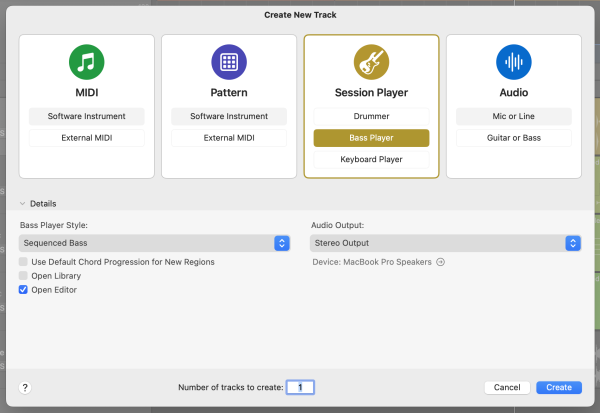
- Add a Keyboard Session Player track
- Open the Chord Track (Track > Global Tracks > Show Chord Track)
- Set a few chords (even a simple two-chord loop is enough)
- In Smart Controls, click the instrument patch name
- Browse to Electric Piano and select a Wurlitzer or Rhodes patch
- Press play
What you're listening for isn't perfection. It's direction. Does the harmonic feel match the sound world you're imagining? If yes, you've confirmed a direction in minutes. If no, swap to a pad, an organ, or a synth texture and try again. You're not committing to anything yet, just listening.
Why this matters: Sound world decisions belong before production decisions, and this technique forces that order. Speed is the point here, and finesse can wait for the Build stage.
Technique 2: The Instant Bass Double
This one shines in rock, indie, and lo-fi production, where a little string character in the low end brings a rhythm section to life.
The idea: Duplicate a Bass Player Session Player track, swap the patch to a clean guitar preset, and transpose it up an octave. You now have an automatic bass double that follows your Chord Track alongside the original.
Step-by-step:
- Create a Bass Player Session Player and dial in a style
- Duplicate the track (Command + D)
- On the duplicate, click the patch name and browse to a clean electric guitar preset (Amp Designer with a clean setting works well)
- In the Region Inspector or Smart Controls, transpose the track +12 semitones (skip this if the double already sits well at the bass's octave)
- Blend the guitar level down so it sits under the bass, not competing with it
Listen for the guitar adding brightness and string texture without crowding the low end. If it's too present, pull the level back or cut EQ around 300–400 Hz.
Why this matters: You've built a rhythm section sketch with two tracks and no MIDI programming. Both tracks follow the same Chord Track, so they stay locked together as your chords change. That's a lot of character for almost no setup.
Technique 3: The Drummer as Texture (Bonus)
Fair warning: this one is a creative experiment.
The idea: Swap a Drummer Session Player's patch to something melodic or tonal.
What comes out is rhythmically dense, tonally unpredictable material that can work as a texture layer or, if you're into sampling, as raw material to chop and repitch.
The real value here is demystification. When you hear what happens after pulling the drum sounds out from under the performance engine, the whole Session Player concept clicks in a way that description alone never does. Try it once, and you'll learn something about the engine that carries forward into every other technique.
Connecting These Techniques to a Workflow
All three techniques serve one moment in a session: choosing a direction before you commit the time to build it. The workflow around that moment runs in two stages.
The Choose stage is about deciding what kind of sound world you're working in, before you spend real time on production. Session Players with swapped patches let you hear candidates in minutes.
The Build stage is where production begins. Once you've confirmed a direction, convert your Session Player regions to MIDI (right-click the region → Convert to MIDI Region), swap in your final patches, and start production with a clear direction.
That sequence (choose first, build second) saves more time than any single workflow trick. The Session Player patch swap makes the Choose stage faster and more decisive.
Give It a Try
The next time you open a new project, spend the first five minutes on this before doing anything else. Load a Keyboard Session Player, set two chords, swap the patch, and press play. See what you hear.
You might confirm a direction you already had in mind or land somewhere you didn't expect. Either way, you'll have something real to react to, which beats a blank canvas every time.
Your Logic Pro Coach,
Graham
Free Download
Get the Free Logic Pro Quick Start Guide
The key workflows, settings, and shortcuts to get up and running in Logic Pro fast. Enter your name and email and I'll send it right over.
Your information stays private. No spam, no sharing, ever.