
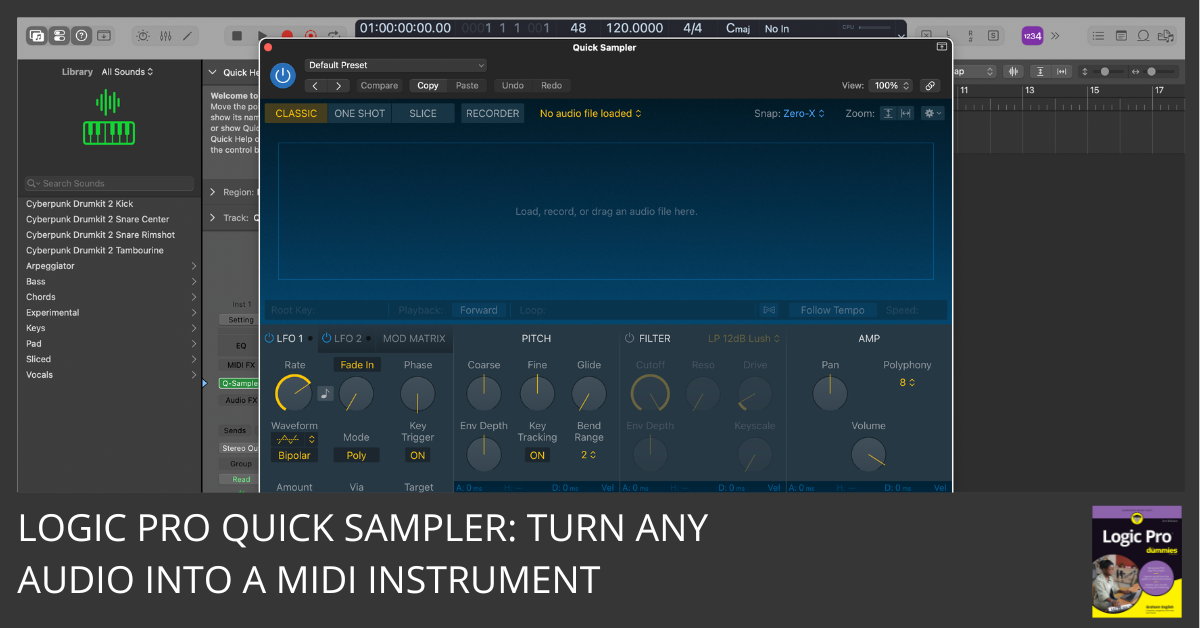
Most Logic Pro users do the same thing when they get a new sample: drag it straight onto the timeline, hit play, and move on.
It works — until it doesn't.
The moment you want to repitch it, loop it musically, or play it across a keyboard, you realize you're stuck. That static audio region isn't going anywhere.
There's a better way to drop that audio. It's called Quick Sampler, and it's already built into Logic Pro. You just need to know where to drag.
What Is Quick Sampler in Logic Pro?
Quick Sampler is a built-in Logic Pro instrument that takes a single audio file and maps it across your MIDI keyboard — instantly turning a static sound into something you can play, pitch, and shape in real time.
Think of it as the quick-access tool for sample work. It's not Alchemy (Logic's complex, multi-sample synthesizer), and it's not Drum Machine Designer (which maps one-shots to a percussion grid). Quick Sampler does one thing really well: it loads a single audio file and makes it musical. That's exactly what most people need.
Why Dropping Audio Directly on the Timeline Limits You
When you drag an audio file onto the timeline, Logic creates a static audio region. That's fine for playback, but it locks you in. Here's what you can't easily do with a plain audio region:
- Repitch the sample across multiple octaves
- Sequence it with MIDI patterns
- Control dynamics with velocity
- Shape the attack and release with an envelope
- Modulate pitch, filter, or effects in real time
Every one of those things is available the moment you load that same file into Quick Sampler. And here's the part beginners worry about: your original audio file stays completely untouched. Quick Sampler reads it — it doesn't change it.
How Quick Sampler Turns Your Sample into a MIDI Instrument
When Quick Sampler loads your audio file, it maps it to a root note (usually C3). Play that key, and you hear the sample at its original pitch. Play a higher note, and the pitch goes up. Play a lower note, and it goes down. The audio file itself never changes — Quick Sampler just stretches or compresses the pitch proportionally in real time.
| ✅ Non-Destructive Reassurance Quick Sampler always references your original file. Nothing gets overwritten, converted, or moved. You can delete the Quick Sampler instrument, and your audio file is exactly where you left it. |
Where to Drag Your Audio — This Is the Key Difference
This is where most people get confused, and honestly, Logic doesn't make it obvious. There are three different places you can drop an audio file, and they each do something completely different.
| Drop Zone | What Happens |
|---|---|
| Onto the timeline | Creates a static audio region. No dialog. No MIDI control. |
| Onto an existing track header | Replaces the instrument on that track — which surprises most beginners. |
| Below the track list ✔ This one | Triggers the instrument-selection dialog. This is where Quick Sampler lives. |
The target zone is the empty gray space below your last track in the track list. Drag your audio file there, and Logic will ask what you want to do with it.
Step-by-Step: Opening a Sample in Quick Sampler
- Locate your audio sample. Find the file in the Logic Pro Browser, Finder, or your desktop. WAV, AIFF, and MP3 all work.
- Identify the correct drop zone. Look for the empty gray space below your last track in the track list area, not the timeline, not a track header.
- Drag the file below the track list. Drag it downward into that empty space. Logic detects it and shows a dialog.
- Select Quick Sampler (Original) from the dialog. When prompted, click "Quick Sampler (Original)." Logic creates a new Software Instrument track — a MIDI-based track — with Quick Sampler already loaded and your sample mapped.
- Create a MIDI region on the new track. Press T to open the Tool menu, select the Pencil tool, then click in the track lane to draw a MIDI region. Or press Command-click to create one quickly.
- Draw or record a MIDI note. Double-click the region to open the Piano Roll. Draw a note at C3 — the default root — to hear the sample at its original pitch.
- Explore the Quick Sampler controls. Open the Quick Sampler plugin window. Adjust Tune to shift pitch globally, shape the sound with the Amplitude Envelope (attack, decay, sustain, release), and enable Pitch Glide for smooth transitions between notes.
- Test the pitch range. Draw notes above and below C3 to hear the sample pitched up and down. Your original file has not changed.
| 💡 Pro Tip Don't worry if the dialog appears and disappears quickly the first time. That just means you dropped the file somewhere else. Try again, targeting that empty space below all your tracks. |
What to Do After Quick Sampler Loads
Most tutorials stop at "Logic creates the instrument." That's when things get interesting. Don't stop there.
Once Quick Sampler loads, you're working with a Software Instrument track. That means MIDI controls everything. Here's where to look in the Quick Sampler plugin window:
- Mode selector (Original / Slice / Trim): Original mode plays the sample as-is, pitched across keys. Slice mode chops the sample into segments for rhythmic triggering.
- Trim mode isolates a section of the sample for tight, precise playback. For most use cases — especially melodic or tonal samples — start with Original.
- Tune: Shifts the overall pitch of the mapped sample up or down in semitones and cents.
- Amplitude Envelope: Shapes how the sound starts and stops. Increase the Attack to soften the entry; reduce the Release to cut the tail.
- Pitch Glide: Enables smooth pitch slides between notes. It'sgreat for expressive vocal chops or bass samples.
Quick Sampler vs. Drum Machine Designer vs. Alchemy — Which Should You Choose?
When the dialog appears after your drop, you'll see three options. Here's the plain-language breakdown:
Quick Sampler: One sample, mapped across a keyboard. Great for melodic elements, vocal chops, loops, and anything you want to pitch or sequence with MIDI. This is the right choice for most people asking this question.
Drum Machine Designer: Maps multiple one-shot samples to a percussion grid. Use this for building drum kits, not for melodic material.
Alchemy: Logic's full-featured synthesizer. Powerful, but significantly more complex. Import a sample here when you want to layer it with synthesis, apply spectral processing, or build something elaborate.
If you have one sample and you want to play it, Quick Sampler is your tool.
Common Mistakes to Avoid
You're not doing it wrong. Logic just has three different drop zones, and they do three very different things. Here's what trips people up:
- Dropping the file onto the timeline instead of below the track list. The dialog never appears. Logic just creates a plain audio region.
- Dropping onto a track header. This replaces the instrument on that track, which is rarely what you intended.
- Dismissing the dialog without reading it. Clicking the first option out of habit can land you in Alchemy or Drum Machine Designer when you wanted Quick Sampler.
- Not creating a MIDI region after loading. The instrument is there, but nothing plays until you draw or record MIDI notes to trigger it.
- Assuming the original file was changed. Quick Sampler always references the original. Your file is untouched.
- Playing only C3 and wondering why nothing sounds different. Try other notes to hear the pitch-shifting in action. That's the whole point.
Pro Tips for Getting More Out of Quick Sampler
- Use velocity sensitivity. Assign velocity to volume in the Modulation section for more expressive, natural-sounding playback.
- Try Slice mode on loops. If your sample is a rhythmic loop, Slice mode chops it into segments and maps each hit to a MIDI key, giving you full rearrangement control.
- Automate Quick Sampler parameters. Tune, Filter Cutoff, and Envelope settings can all be automated in the Logic Pro timeline just like any other instrument.
- Use Flex Pitch on a bounced Quick Sampler performance. Bounce your MIDI output to audio, then use Flex Pitch for precise pitch editing of the result.
- Set a custom root note. If your sample isn't pitched at C3, drag the root note indicator in Quick Sampler's waveform display to match the actual pitch of your sample.
Frequently Asked Questions
Does Quick Sampler change or damage my original audio file?
No. Quick Sampler reads your original file non-destructively. Your audio is never altered, moved, or converted. Delete the Quick Sampler instrument, and the file is exactly where you left it.
Can I use Quick Sampler with loops?
Yes, and it works well. In Original mode, your loop plays at its original pitch when you hold a key. Try Slice mode to chop the loop and trigger individual slices from the keyboard.
What does "Original" mode mean in Quick Sampler?
Original mode plays the sample as a continuous mapped instrument — the full audio file, pitched up or down based on the MIDI note you play. It's the most flexible mode for melodic and tonal samples.
How do I change the root key of my sample in Quick Sampler?
In the Quick Sampler waveform display, look for the root note indicator (a small triangle or marker). Drag it to match the actual pitch of your sample. This ensures C3 plays the sample at its true original pitch.
Can I automate Quick Sampler parameters?
Yes. Right-click any knob or parameter in the Quick Sampler interface to assign it to automation. You can record or draw automation for pitch, envelope, filter, and more directly in the Logic Pro timeline.
Keep Your Creative Flow Moving
Quick Sampler is one of those Logic Pro features that feels like a secret once you discover it. Drag your audio to the right zone, choose Quick Sampler, and in under a minute, you've turned a static file into a playable instrument with full MIDI control and zero damage to your original audio.
Music should be fun, not frustrating. Now you know where to drag.
Free Download
Get the Free Logic Pro Synth Cheat Sheet
Alchemy, ES2, and more — the key settings for building any sound, on one page. Enter your name and email and I'll send it right over.
Your information stays private. No spam, no sharing, ever.