
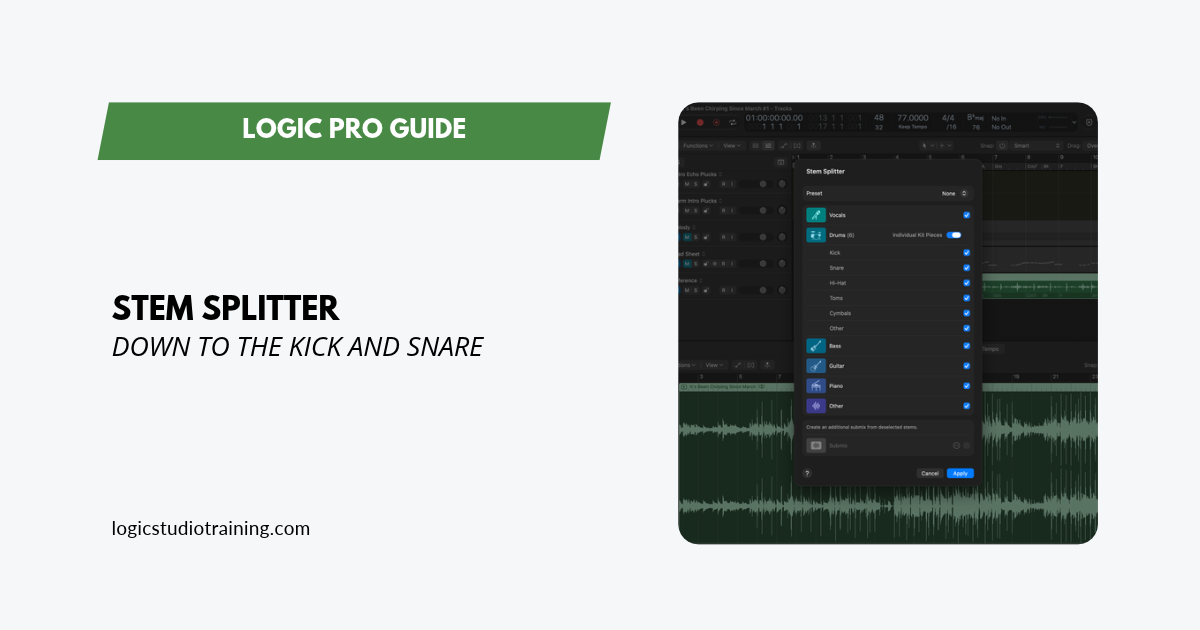
Stem Splitter in Logic Pro pulls vocals, drums, bass, guitar, piano, and everything else out of a fully mixed track and drops each part into your session as editable audio. That makes it a workhorse for remixers, teachers, live performers, and producers who work with samples, and it works without a single multitrack from the original session.
Logic Pro 11.2 added guitar and piano stems, and the Logic Pro 13 update takes the drums a level deeper by splitting them into kick, snare, hi-hat, toms, cymbals, and other percussion. Stem Splitter needs a Mac with an M1 chip or later.
How to Extract Stems with Stem Splitter
Step 1: Open Stem Splitter
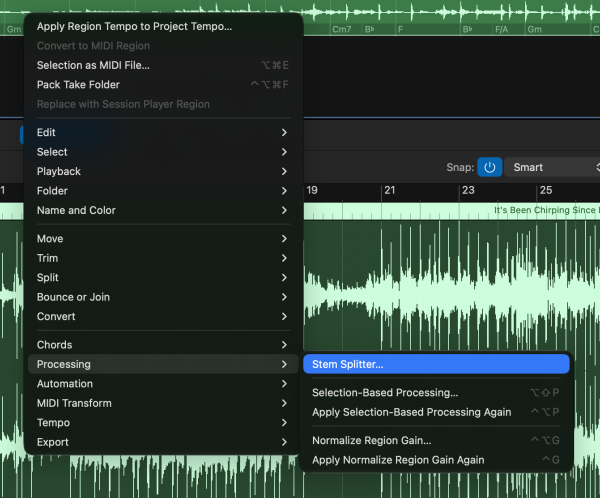
Find the audio region you want to split in the Tracks area. Control-click it and choose Processing > Stem Splitter from the shortcut menu.
Stem Splitter works on one region at a time, stereo or mono. If you have no region or several regions selected, the stem options appear dimmed, so click the single region you want before you open the window.
After you use Stem Splitter once, it moves to the top of the shortcut menu, which saves you a trip into the Processing submenu.
Step 2: Choose Your Stems
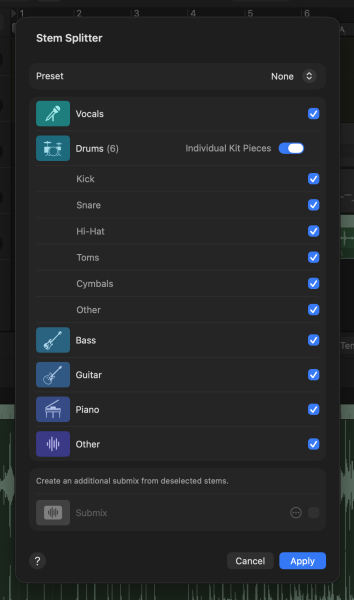
The Stem Splitter window gives you two ways to decide what comes out:
- Preset menu: choose a preset, such as Separate All Stems, to grab a standard combination in one click.
- Checkboxes: select or deselect Vocals, Drums, Bass, Guitar, Piano, and Other to build your own combination.
To pull out only the piano and vocal, check those two boxes. To separate everything, check all six.
Step 3: Split the Drums into Kit Pieces (Logic Pro 13)
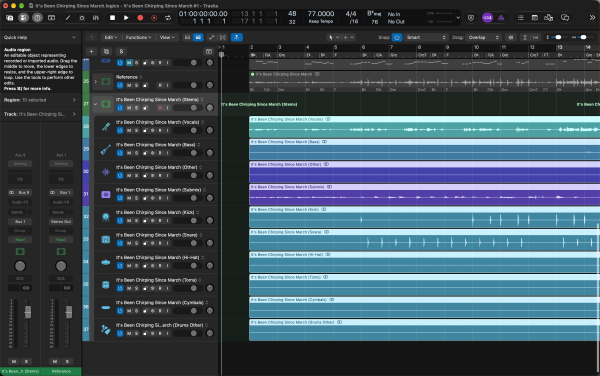
Logic Pro 13 can break the drum stem into separate Kick, Snare, Hi-Hat, Toms, Cymbals, and Other stems, with Other covering the rest of the drums and percussion. You can get there two ways:
- Individual Kit Pieces switch: turn on the switch in the Drums row, then deselect any kit pieces you don’t want.
- Drums (Individual Kit Pieces) preset: choose it from the Preset menu to extract only the kit pieces from the region.
You can split the kit pieces at the same time as your other stems or on their own, and Logic groups the individual drum stems in a summing stack.
This is the fix for an old demo bounce with a boomy kick. Split the kick onto its own track, then replace it with a sample or tame it with EQ while the rest of the kit stays where it is.
Step 4: Create a Submix (Optional)
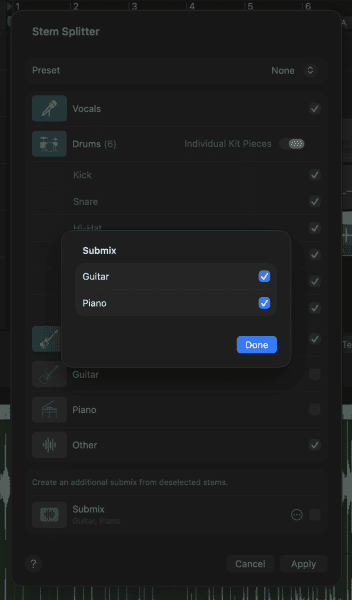
When you deselect two or more stems, Logic bundles them into a submix that appears at the bottom of the window. To extract it, select the Submix checkbox.
Click the More button next to the submix to choose exactly which stems go into it. That’s useful when you want the vocal on its own and everything else as one backing track.
Step 5: Click Apply
Click Apply, and Logic mutes the original region and creates a summing stack below it, with each stem on its own subtrack. Because the original is muted, you can press play and hear the stems right away.
In Logic Pro 13, stems also respect the gain of the original region. If you turned the region down before splitting it, the stems come out at that same level.
Step 6: Edit the Stems
Every stem is regular audio. Solo any part with the Solo button in its subtrack header, then move, copy, or edit it like any other audio region. Plug-ins, pitch correction, and Flex Time all work the same way they do on a recording you tracked yourself.
Learn a bassline by ear, time-stretch a vocal to a new tempo, chop the drums into slices, or print the instrumental as a rehearsal track.
Assign a Key Command to Your Favorite Preset
If you split stems often, give your go-to preset a key command. The Stem Splitter preset key commands ship unassigned, and once you set one, you can select a region and split it with a single keystroke, no window required.
- Choose Logic Pro > Key Commands > Edit Assignments.
- Search for Stem Splitter.
- Select the preset you want and assign your shortcut.
For the rest of the shortcuts worth memorizing, keep my Logic Pro key command cheat sheet next to your keyboard.
Ask the Assistant to Split Stems
If you subscribe to Apple Creator Studio and run macOS 27, the intelligent assistant (beta) in Logic Pro 13 can run Stem Splitter for you. Select a region, click the Assistant button in the control bar, and type a request such as “Isolate the drums from the selected region.”
The assistant works in English only, and it comes with the Creator Studio subscription rather than the one-time purchase of Logic Pro.
Recap
You took a fully mixed stereo file and cracked it open like a six-pack: vocals, drums, bass, guitar, piano, and everything else, with Logic Pro 13 splitting the drum kit down to the kick and snare. Each part lands in your session as editable audio, ready to remix or study.
Stems from someone else’s record are for study and practice until the rights holders say otherwise, so clear anything you plan to release.
Pick an old demo bounce, split it tonight, and start the remix.
Your Logic Pro Coach,
Graham
Logic Pro For Dummies
The Complete Plain-English Guide to Logic Pro
Written by Graham English — the most accessible and complete Logic Pro reference available. Stop Googling every question and actually understand how Logic works.
See the Book →