
When your mix sounds muddy, cluttered, or just plain exhausting to listen to, the cause is usually hiding in your routing rather than your EQ or your plugin choices.
A lot of Logic Pro users slap a reverb or delay directly onto every track that needs it. It feels efficient in the moment, but it chews up CPU and smears everything into a cloudy wash.
The cleaner approach is to run those effects through auxiliary channels as send effects. It's the standard workflow for professional mix engineers, and Logic Pro makes it simple once you know where to look.
Let's walk through it.
Why Send Effects Are Better (And Smarter)
Using reverb or delay as a send effect gives you:
- Cleaner mixes (you’re not stacking multiple wet signals)
- Total control (you can EQ, compress, and automate the effect separately)
- Consistent space (multiple tracks share the same reverb, which glues them together)
- Better performance (you’re using one plugin, not five)
This works for more than reverb and delay. You can send tracks to saturation, parallel compression, or gated distortion with the same surgical precision.
Here’s How to Set It Up in Logic Pro
Three steps will route a clean, efficient send effect.
1. Create an Aux Channel
In the Mixer window (press X), find an empty send slot on any track.
Click it and choose a bus (such as Bus 1). Logic automatically creates a new Aux channel strip routed from that bus.
Tip: Rename it something clear like Vocal Reverb or Instrument Delay.
2. Add Your Effect and Set It to 100% Wet
Click an empty Audio FX slot on your new aux channel and choose your plugin:
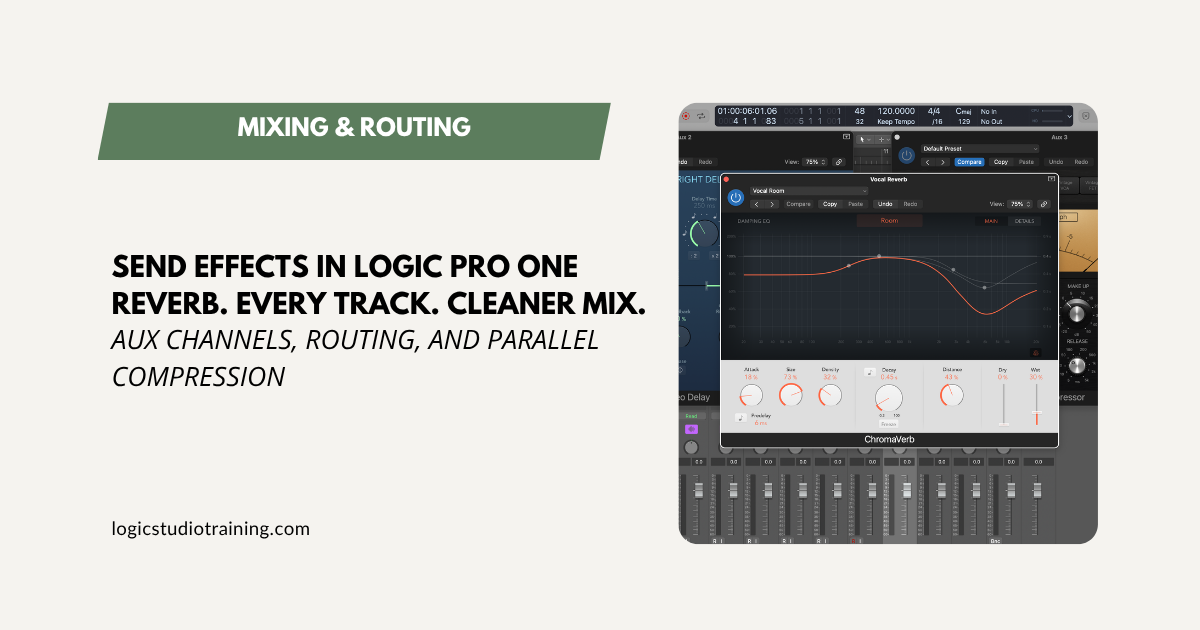
- ChromaVerb for reverb
- Delay Designer for echo
Then open the plugin and set the Wet/Dry Mix to 100% Wet. The aux should output only the effect, while the dry signal stays on the original track. That's the whole point of the setup.
👉 Introducing the Revolutionary ChromaVerb: A Detailed Review and Guide
3. Send Tracks to the Aux and Adjust the Send Level
Go back to your original track, whether that's the vocal, snare, or guitar.
Adjust the send knob next to your selected bus (now labeled something like Bus 1 → Vocal Reverb). This controls how much of the signal feeds the effect, so the higher the send level, the wetter the sound.
You can route multiple tracks to the same effect, too. If you want your lead vocal and backing vocals sharing one space, send them both to Vocal Reverb and they'll sit together.
👉 How to Build Pro Vocal Chains in Logic Pro — By Genre, Using Only Stock Plugins
Want Pro Sound? Process Your Effects Too.
This is the step amateurs skip and pros lean on.
Once your reverb or delay lives on its own aux channel, you can treat it like any other track.
Add an EQ to filter out mud. Reach for a compressor to tame peaks or push the effect into the background. And if you want the reverb to breathe with the music, automate the send level so it rises during the chorus and settles back in the verses.
That kind of control is impossible when your reverb is baked into the insert chain.
👉 Integrating Vocals Seamlessly into Your Mix with Logic Pro's Match EQ: A Step-By-Step Guide
Need a Starting Point?
Try this simple send-effects setup right now.
Aux 1: Vocal Reverb
- Plugin: ChromaVerb
- Preset: Vocal Room
- Wet/Dry: 100% Wet
- EQ after reverb:
- High-pass filter at 250 Hz
- Cut 4 dB at 4 kHz
Aux 2: Instrument Delay
- Plugin: Stereo Delay
- Sync:
- Left: 1/4 Note
- Right: 1/8 Note
- Feedback: 30%
- Filter: Roll off highs above 6 kHz
- Use on:
- Synth leads
- Arpeggios
- Guitar licks
- Anything that benefits from rhythmic space
Aux 3: Parallel Compression Bus
- Plugin: Logic Compressor (Studio FET)
- Ratio: 4:1
- Attack: 10 ms
- Release: 80 ms
- Blend underneath vocals or drums for additional punch
You can build on this setup or swap in your favorite plugins, and the routing structure stays the same.
👉 4 Essential Compression Settings for Beginners: A Breakdown of Attack and Release Settings
Final Thoughts
It's easy to overcomplicate a mix by doing too much on every track. Send effects pull you in the opposite direction. You set up one reverb, one delay, and one compressor, then use them everywhere with intention and clarity.
So stop inserting five different reverbs. Create a couple of aux channels, set your plugins to 100% wet, and send each track only as much as it needs. Then shape the effect just like you shape your sound.
Do that and you'll end up with a cleaner mix that's lighter on your CPU, and the kind of sound that makes people want to hear the track again.
Want to Go Deeper with Logic Pro?
If you found this helpful, there's a lot more where that came from.
Logic Pro For Dummies (3rd Edition) is the complete guide to recording, editing, mixing, and producing in Logic—from the fundamentals to the pro-level tricks that save time and make everything sound better.
You’ll learn how to:
- Build efficient sessions that stay organized and fast
- Shape your sound with Logic’s built-in effects and instruments
- Master routing, automation, and advanced mixing techniques
Whether you’re just getting started or ready to tighten up your workflow, this book will help you make the most of Logic Pro.
🛒 Grab your copy at your favorite bookstore or right here:
Buy Logic Pro For Dummies
Free Download
Get the Free Logic Pro Mixing Cheat Sheet
The essential mixing reference for Logic Pro — key settings, signal flow, and mix decisions on one page. Enter your name and email and I'll send it right over.
Your information stays private. No spam, no sharing, ever.